Why Exchange Online Protection (EOP) Is Your First Line of Defense Against Email Threats

Exchange Online Protection (EOP) is Microsoft's built-in, cloud-based email security service that automatically filters spam, malware, phishing, and spoofing threats before they ever reach your inbox.
Quick answer — what EOP does:
- Filters spam with a greater than 99% effectiveness rate
- Blocks malware with 100% detection of known viruses
- Stops phishing and spoofing using anti-spoofing intelligence
- Quarantines threats automatically, with no setup required for cloud mailboxes
- Protects outbound mail too, not just incoming messages
It's included automatically with Exchange Online and most Microsoft 365 subscriptions. No installation. No configuration needed to get baseline protection.
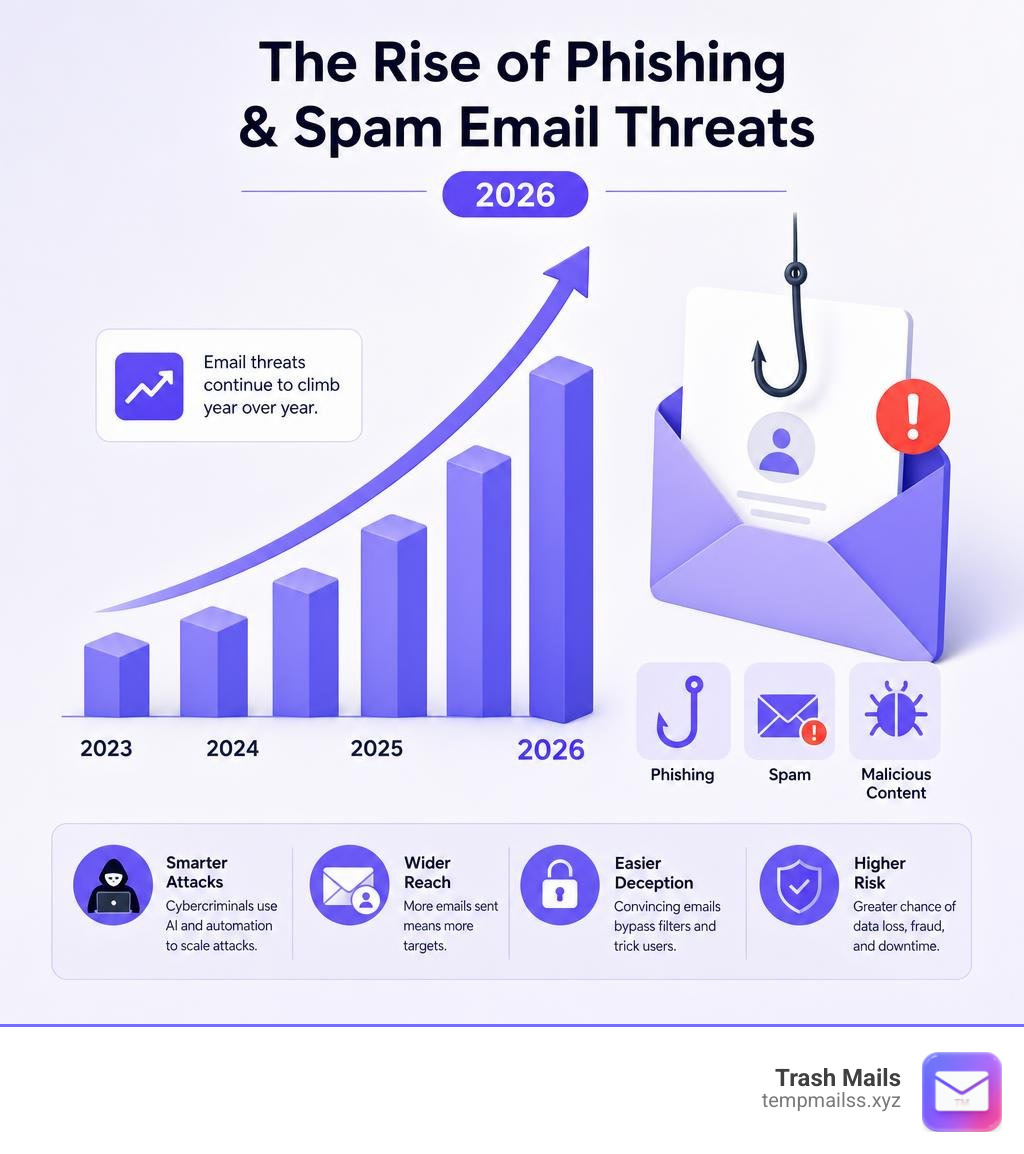
Here's the uncomfortable truth though: an estimated 3.4 billion spam emails are sent every single day. Phishing is now the most common cybercrime. Even with EOP running in the background, your real email address is constantly exposed every time you sign up for a new service or download something online.
That's why understanding exactly what EOP does — and where its limits are — matters whether you're an IT admin managing hundreds of mailboxes or just someone trying to keep their inbox clean.
What is Exchange Online Protection EOP and How Does It Work?
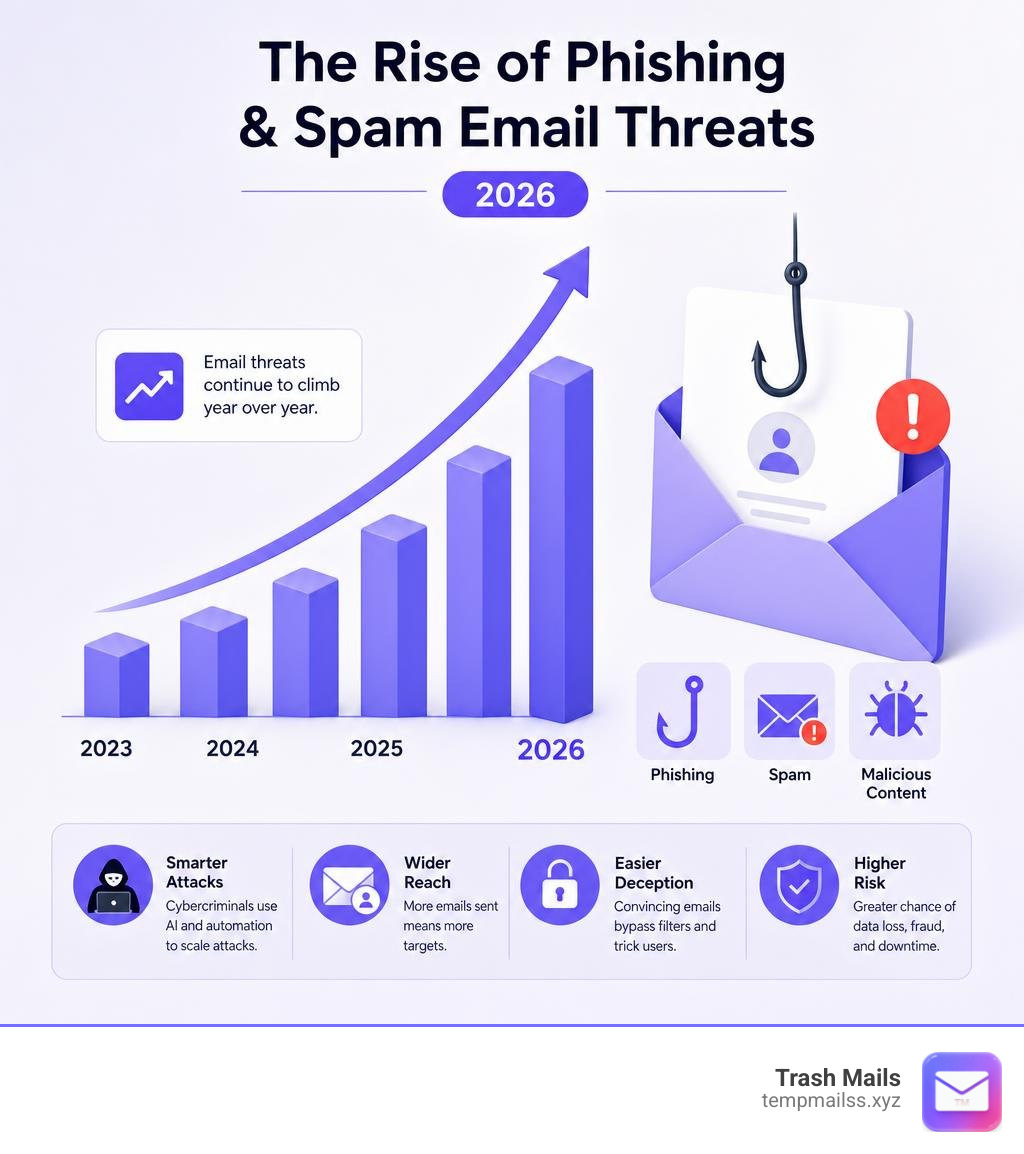
At its core, exchange online protection eop is a globally distributed, cloud-based email security service designed to secure inbound and outbound emails. It acts as an active gatekeeper for your organization’s mailboxes.
To understand how it functions, think of EOP as a high-security sorting facility. Before an email can be delivered to a recipient, it must pass through a strict, multi-stage screening process. For cloud-hosted mailboxes, this security layer is natively integrated. For hybrid or on-premises environments, organizations route their mail through EOP by pointing their domain's Mail Exchanger (MX) records directly to Microsoft 365.
Once your MX record is configured, all incoming messages from the internet route through Microsoft’s massive global network of geo-redundant datacenters. This ensures high availability and resilience; if one datacenter experiences an outage, messages are seamlessly rerouted to another. To dive deeper into the overarching architecture, you can read A Guide to Exchange Online Protection (EOP) - Spanning Backup.

The Five Sequential Filtering Stages
When an email is sent to your domain, it doesn't just land in your inbox. It undergoes a structured, five-stage filtering pipeline:
- Connection Filtering: The first defense layer inspects the sender's reputation. It checks the IP Allow List and IP Block List. If a message originates from a known malicious IP or an unrecognized sender, connection filtering blocks it immediately. EOP also leverages Directory Based Edge Blocking (DBEB) to reject emails addressed to invalid or nonexistent email addresses in your organization before scanning even starts.
- Anti-Malware: If the connection is accepted, the email is scanned for malware. EOP utilizes multiple scanning engines simultaneously to catch known viruses, spyware, and ransomware. If any malicious attachments are detected, they are deleted or quarantined.
- Policy Filtering (Mail Flow Rules): The message is evaluated against custom mail flow rules (also known as transport rules) configured by your administrators. For instance, a rule might block emails containing specific keywords or redirect messages with sensitive information to an approval queue.
- Content Filtering (Anti-Spam and Anti-Phishing): The email's body, subject, headers, and links are analyzed using advanced heuristics and machine learning. This stage determines if the message is spam, bulk mail, or a phishing attempt.
- Delivery: If the message successfully survives all four filters, it is delivered to the recipient’s Inbox or Junk Email folder, or sent straight to secure Quarantine based on your administrative policies.
Feature Availability Across Licensing Models
EOP is highly versatile and is licensed in several ways. Depending on your organization's setup, the features available to you might differ slightly. The table below outlines how features are distributed across standalone EOP, Exchange Enterprise CAL with Services, and native cloud mailboxes:
| Feature | Standalone EOP (for On-Premises) | Exchange Enterprise CAL with Services | Cloud Mailboxes (Exchange Online / M365) |
|---|---|---|---|
| Inbound/Outbound Filtering | Yes | Yes | Yes |
| Multi-Engine Anti-Malware | Yes | Yes | Yes |
| Directory Based Edge Blocking (DBEB) | Yes | Yes | Yes |
| Zero-Hour Auto Purge (ZAP) | No | No | Yes |
| Microsoft Purview Data Loss Prevention (DLP) | No | Yes | Yes (in select plans) |
| Web Services Reporting | No | Yes | Yes |
To review more licensing details and technical specifications directly from the source, consult the Built-in security features for cloud mailboxes service description - Service Descriptions | Microsoft Learn.
Core Security Capabilities: Spam, Malware, Phishing, and Spoofing
Microsoft backs EOP with robust Service Level Agreements (SLAs) to guarantee enterprise-grade protection. These SLAs include a spam effectiveness rate of greater than 99%, a false positive ratio of less than 1 in 250,000 emails, and a 100% virus detection rate for known malware signatures.
To maintain this high bar, EOP utilizes a range of active protection tools, such as Zero-Hour Auto Purge (ZAP). ZAP is a post-delivery protection mechanism that continuously monitors emails even after they have landed in user inboxes. If a message is delivered but later identified as a phishing or malware threat, ZAP retroactively clawbacks the email and moves it to quarantine or the Junk folder. To explore these default protections further, see Built-in security features for all cloud mailboxes - Microsoft Learn.
Anti-Phishing and Anti-Spoofing in Exchange Online Protection EOP
Phishing remains the most common cybercrime, often utilizing spoofed domains to trick victims into surrendering credentials. EOP counters this with built-in anti-spoofing intelligence.
The service inspects the "From" header of every incoming email and compares it against domain authentication protocols:
- SPF (Sender Policy Framework): Verifies if the sending IP is authorized by the domain owner.
- DKIM (DomainKeys Identified Mail): Uses cryptographic signatures to verify that the email wasn't altered in transit.
- DMARC (Domain-based Message Authentication, Reporting, and Conformance): Dictates how the receiver should handle emails that fail SPF or DKIM.
EOP’s spoof intelligence detects when an external sender attempts to impersonate a domain in your organization or an external brand. If a message is flagged as a high-confidence phishing attempt, EOP bypasses the user's Junk folder entirely and sends the message straight to the administrative quarantine to prevent accidental clicks.
Anti-Malware and Anti-Spam Protection
EOP’s anti-malware framework is always-on and cannot be disabled. It uses multiple anti-virus engines to catch threats. Administrators can customize the default anti-malware policy to decide what happens when malware is found. For example, you can choose to delete the entire message or strip the malicious attachment and replace it with a text alert notifying the user of the block.
For spam, EOP categorizes messages into several verdicts:
- Spam: Standard junk mail, which is routed to the user's Junk Email folder by default.
- High Confidence Spam: Highly obvious spam, which can be configured to go straight to quarantine.
- Bulk Email: Newsletters or marketing campaigns. Admins can adjust the Bulk Complaint Level (BCL) threshold to decide how strictly bulk emails are filtered.
For a deeper dive into adjusting these security verdicts, check out the Built-in security features details - Service Descriptions | Microsoft Learn.
EOP vs. Microsoft Defender for Office 365
A common point of confusion for administrators is the difference between standard EOP and Microsoft Defender for Office 365 (formerly Advanced Threat Protection).
Think of EOP as the baseline lock on your front door. It stops known criminals (known spam, bulk mail, and signature-verified malware). Defender for Office 365 is like a comprehensive smart home security system with motion sensors and active guards. It is designed to stop sophisticated, unknown zero-day exploits.
Here is a quick breakdown of how they compare:
- Exchange Online Protection (EOP): Included in all Microsoft 365 plans. It focuses on reputation analysis, IP blocklists, multi-engine anti-malware, and basic anti-phishing/anti-spoofing.
- Microsoft Defender for Office 365 Plan 1: Adds advanced real-time protections like Safe Links (which wraps and scans URLs at the time of click to prevent delayed-activation phishing) and Safe Attachments (which detonates unknown attachments in a secure virtual sandbox to observe their behavior before delivery).
- Microsoft Defender for Office 365 Plan 2: Included in enterprise plans like Microsoft 365 E5. It focuses on post-breach response, offering automated investigation and remediation (AIR), advanced threat hunting tools, and attack simulation training to test user resilience.
To watch a visual breakdown of how these tiers interact, check out Microsoft 365: Exchange Online Protection (EOP) - YouTube.
Setup, Configuration, and Best Practices
While EOP works out of the box with zero configuration for cloud mailboxes, relying solely on default settings isn't always enough to secure an enterprise.
To maximize protection, we recommend implementing several key best practices:
- Enable Directory Based Edge Blocking (DBEB): Ensure your accepted domain type is set to "Authoritative" so EOP automatically rejects emails sent to invalid addresses at the network perimeter.
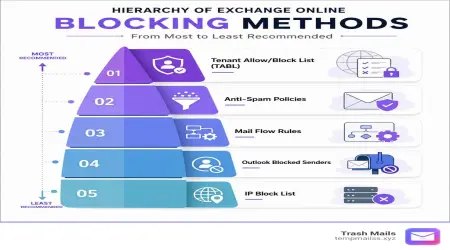
- Configure Tenant Allow/Block List: Use this central dashboard to manually block or temporarily allow specific senders, domains, file extensions, or URLs that bypass standard filtering.
- Implement SPF, DKIM, and DMARC: Properly configure these DNS records for your own domains to ensure your outbound emails aren't marked as spam by other networks.
If you are running a hybrid setup with on-premises mailboxes, review the Best practices for configuring the Built-in security add-on for on-premises mailboxes | Microsoft Learn to ensure your local exchange server communicates seamlessly with the cloud protection layer.
How to Connect to Exchange Online Protection EOP via PowerShell
While the Microsoft 365 Defender portal is highly intuitive, advanced administrators often prefer automating tasks and configurations using PowerShell.
To manage your EOP settings via the command line, you must first connect using the modern Exchange Online PowerShell module, which supports secure modern authentication (MFA).
Run the following command in an elevated PowerShell session to install and load the module:
Install-Module -Name ExchangeOnlineManagement
Once loaded, you can establish an interactive connection:
Connect-ExchangeOnline
If you are managing the standalone security add-on for an on-premises environment, you can establish a specialized connection. For detailed, step-by-step connection scripts and troubleshooting, refer to Connect to Exchange Online PowerShell | Microsoft Learn and PowerShell for the Built-in security add-on for on-premises mailboxes | Microsoft Learn.
Standard vs. Strict Preset Security Policies
Rather than building custom spam and phishing policies from scratch, Microsoft provides Preset Security Policies that align with their recommended security baselines.
- Standard Preset Policy: Ideal for most regular users. It balances strong protection with a very low risk of false positives.
- Strict Preset Policy: Designed for high-profile targets (such as executives or finance teams) who are frequently targeted by spear-phishing. It features aggressive bulk mail thresholds, stricter anti-spoofing checks, and sends more borderline messages to quarantine.
To verify if your custom rules align with Microsoft's recommendations, administrators can run the Configuration Analyzer in the Defender portal. It compares your active policies against the Standard and Strict templates, highlighting any security gaps.
Quarantine, Submissions, and Troubleshooting
Even the best filters occasionally make mistakes. When EOP flags a legitimate email as a false positive, or lets a spam message slip through as a false negative, administrators have tools to remediate the issue.
Legitimate emails flagged as suspicious are held in the secure Quarantine portal. Depending on your quarantine policies, end-users can receive daily digest notifications allowing them to request the release of quarantined messages, or admins can retain sole control over releases.
To resolve filtering mistakes permanently, use the Submissions portal in the Microsoft 365 Defender portal:
- Admin Submissions: Submit false positives (legitimate mail marked as spam) or false negatives (phishing/spam delivered to the inbox) directly to Microsoft. Microsoft's security team analyzes the message and updates their global threat definitions.
- User Reporting: Deploy the Report Message or Report Phishing add-ins to Outlook. This empowers your users to report suspicious emails directly to your security team and Microsoft with a single click.
For active troubleshooting, the Message Trace tool is invaluable. It allows you to search for any message sent or received in the last 90 days to see exactly which EOP filters, mail flow rules, or policies were applied to it.
Frequently Asked Questions about EOP
Can EOP anti-malware scanning be disabled?
No. Anti-malware scanning in EOP is a core security baseline and cannot be turned off. This ensures that no organization accidentally exposes itself to known malicious payloads. However, administrators can customize the threat actions and notification settings within the default anti-malware policy.
What is Zero-Hour Auto Purge (ZAP) in EOP?
ZAP is an automated, post-delivery defense feature. If an email is delivered to a user's inbox, but Microsoft's threat intelligence subsequently identifies it as malware or a high-confidence phishing attempt, ZAP retroactively runs in the background to remove the threat from the mailbox and place it into quarantine.
How does EOP handle hybrid on-premises environments?
In a hybrid setup, EOP acts as the cloud-based entry point. Incoming mail from the internet points to EOP via MX records, gets filtered, and is then securely routed to your on-premises Exchange servers using secure mail flow connectors. This allows on-premises mailboxes to benefit from the same cloud-based spam and malware protection as cloud mailboxes.
Conclusion
Implementing exchange online protection eop is an excellent, enterprise-grade way to establish clean email hygiene and build a proactive defense around your organization's communications. It filters out the vast majority of malicious traffic before it ever touches your network.
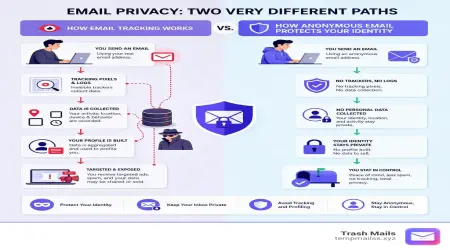
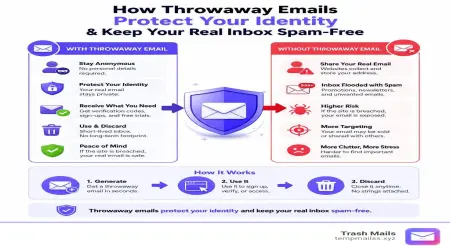
However, as robust as EOP is, no filter is 100% foolproof. In 2026, the best way to keep your inbox truly clean and protect your personal privacy is to avoid giving out your real email address in the first place.
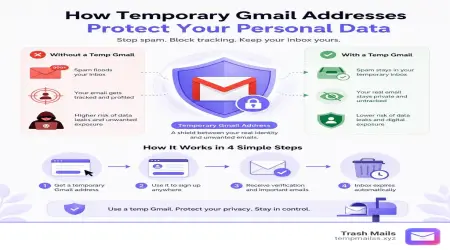
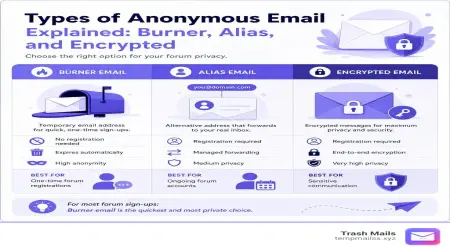
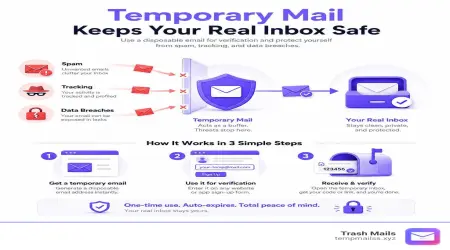
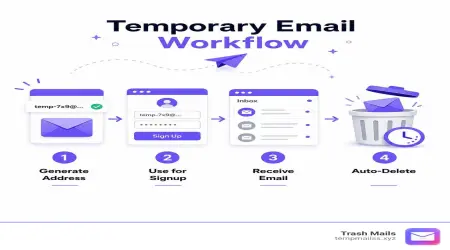
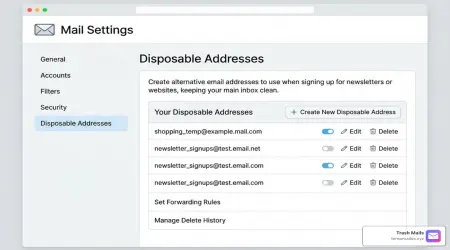
Whenever you need to sign up for a newsletter, access a one-time download, or register on an untrusted website, you can use our service. We offer free, instant, and unlimited temporary Gmail addresses with no registration required. By using a disposable address, you bypass the spam filters entirely and keep your primary mailbox completely safe from data breaches.
Protect your personal inbox from unwanted spam and keep your identity secure. Protect your privacy with Trash Mails today!