How to Block a Sender in Exchange Online (Without Losing Your Mind)
Why Blocking Senders in Exchange Online Is Harder Than It Should Be
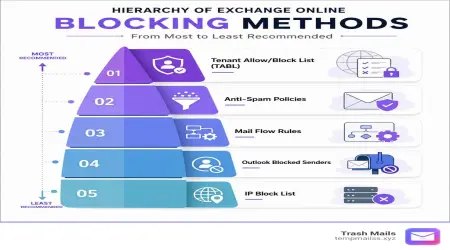
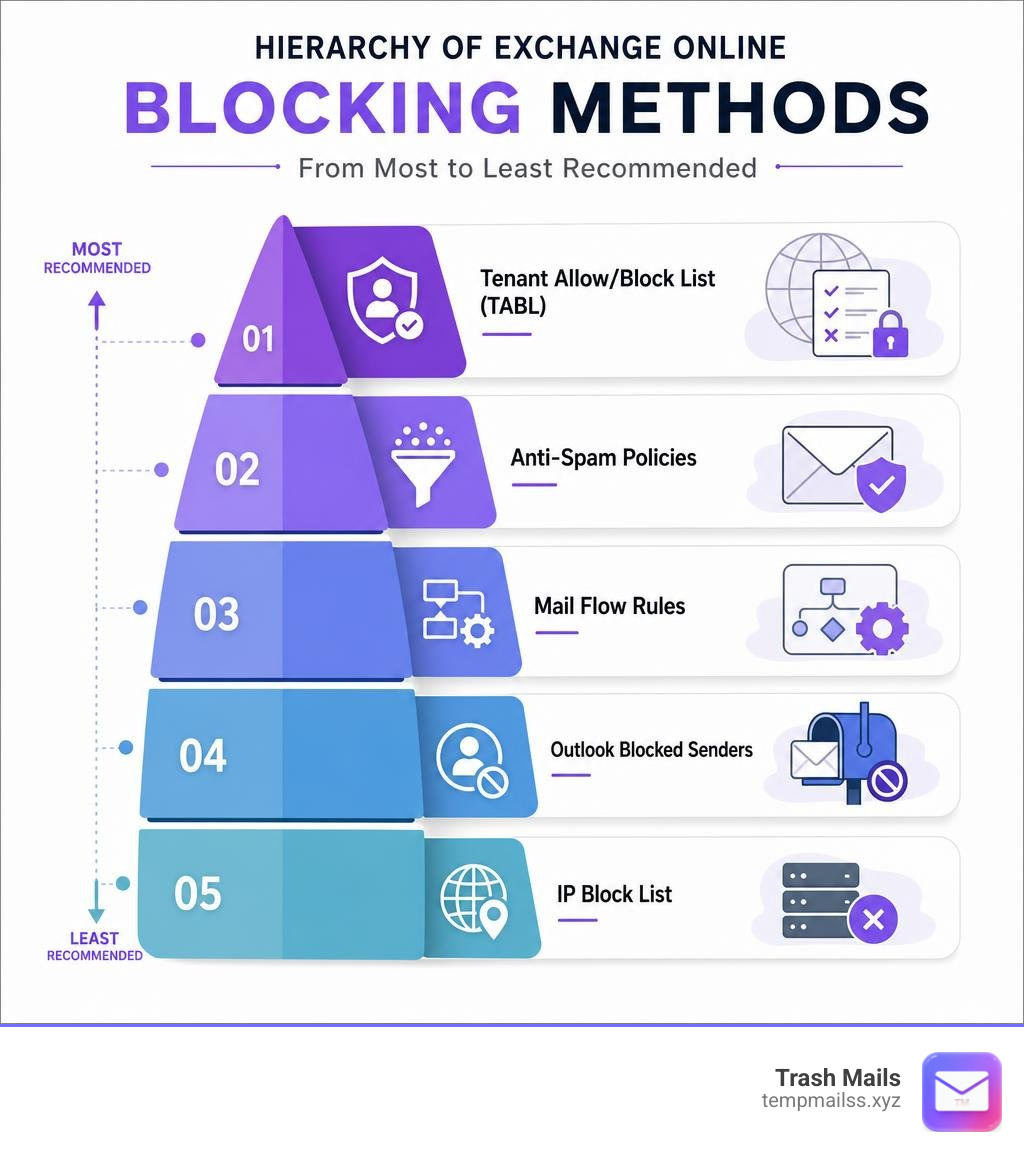
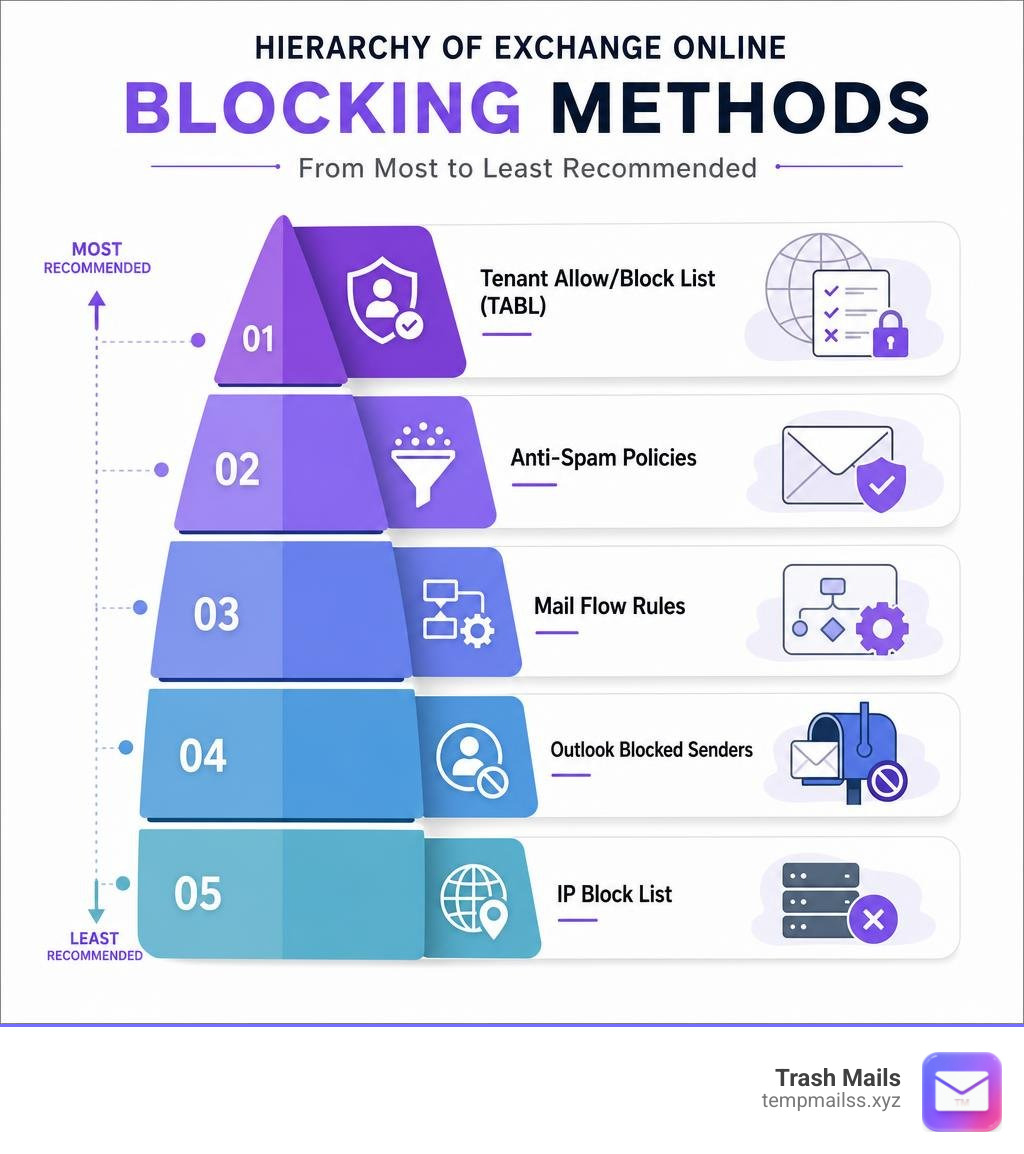
If you need to block a sender in Exchange Online, here are the five methods available, ranked from most to least recommended:
- Tenant Allow/Block List (TABL) — Best for org-wide blocking of domains and email addresses
- Anti-Spam Policies — Good for bulk sender/domain blocks, up to ~1,000 entries
- Mail Flow Rules — Flexible rule-based blocking using spam confidence levels
- Outlook Blocked Senders — Works per mailbox only, good for individual users
- IP Block List — Last resort, for blocking specific sending IP addresses
Unwanted email is a constant headache for anyone managing a Microsoft 365 environment. Whether it's persistent spam, phishing attempts, or a domain you simply never want to hear from again, Exchange Online Protection (EOP) gives you several tools to deal with it.
The tricky part? There are five different methods, and they don't all work the same way. Some block at the organization level. Some only affect a single mailbox. Some stop both inbound and outbound email. Others only look at one of the two email addresses buried in every SMTP message.
Picking the wrong method means the email still gets through — or worse, you accidentally block something legitimate.
This guide walks you through every option, explains which one to use and when, and shows you exactly how to set each one up.
The Ultimate Hierarchy to Exchange Online Block Sender Methods
When we want to block an annoying or malicious sender, we cannot just pick a method at random. Microsoft has built a clear, structured hierarchy into Exchange Online Protection. Applying blocks at the wrong level can lead to administrative chaos, performance degradation, or security gaps.
To help you choose the right path, we have compiled a comparison of the five primary administrative tools for blocking senders.
| Method | Scope | Maximum Entry Limit | Recommended Use Case | Inbound & Outbound? |
|---|---|---|---|---|
| Tenant Allow/Block List (TABL) | Entire Tenant | Up to 15,000 entries (depends on license) | High-confidence blocking of malicious domains, specific addresses, or files. | Yes (Blocks both incoming and outgoing mail) |
| Anti-Spam Policies | Tenant or Specific Groups | ~1,000 entries | Blocking bulk promotional senders or non-malicious unwanted domains. | Inbound Only |
| Mail Flow Rules (Transport Rules) | Highly Customizable | Unlimited (within overall rule limits) | Complex scenarios requiring keyword matching, header checks, or custom routing. | Both (depending on rule setup) |
| Outlook Blocked Senders | Individual Mailbox | 65,535 entries (510 KB size limit) | User-specific preferences for personal junk mail management. | Inbound Only |
| IP Block List | Entire Tenant | Unlimited (CIDR ranges /24 to /32) | Last resort for persistent, static IP-based spam campaigns. | Inbound Only |
Using the right tool ensures that your mail servers do not waste resources processing garbage. For example, blocking a sender via TABL prevents your users from accidentally replying to them, whereas mailbox-level blocks only route incoming mail to the Junk folder.
If you want to read more about how these layers coordinate, check out this excellent breakdown on Learn more about blocking senders in Microsoft 365.
1. Tenant Allow/Block List (TABL)
The Tenant Allow/Block List (TABL) is our absolute first choice when we need to block an exchange online block sender target. It is the most robust, reliable, and secure method available within Microsoft Defender for Office 365.
TABL does not just hide emails in a Junk folder; it actively intercepts them. When a block is active in TABL, inbound messages from that sender are treated as high-confidence phishing and automatically quarantined.
Furthermore, TABL is unique because it works bidirectionally. If an external email address is added to your blocklist in TABL, your internal users are also blocked from sending outbound emails to that address. This is a critical security control that prevents your employees from accidentally interacting with known scammers or phishing operators.
To understand the full scope of how TABL handles overrides, spoofing, and advanced filtering, you can review the official Microsoft documentation here: Detailed guide on Tenant Allow/Block List.
2. Anti-Spam Policies
Anti-spam policies are the traditional way to manage organization-wide blocklists. Within the Microsoft Defender portal, administrators can configure the default inbound anti-spam policy (or create custom ones) and add specific email addresses or domains to the "Blocked senders and domains" lists.
However, there are two major limitations you must keep in mind:
- The 1,000-Entry Limit: The maximum limit for blocked sender lists or blocked domain lists in anti-spam policies is approximately 1,000 entries. If you try to manage a massive blocklist here, you will hit a wall very quickly.
- Address Inspection (5322.From): Anti-spam policy blocklists only inspect the 5322.From address (the friendly address displayed in the email client). They do not inspect the 5321.MailFrom address (the actual envelope sender used during the SMTP connection). If a spammer uses a spoofed display address, this block method might fail to catch it.
For a step-by-step walkthrough of setting up these lists, see the official instructions on how to Configure anti-spam blocklists.
3. Mail Flow Rules (Transport Rules)
Mail flow rules (historically known as Exchange transport rules) are the Swiss Army knife of Exchange Online administration. They allow us to build highly customized routing logic.
If you want to block an exchange online block sender candidate based on complex conditions — such as "if the sender domain is contoso.com AND the subject contains the word 'Invoice' AND the recipient is in the Finance department" — mail flow rules are your only option.
When using mail flow rules for blocking, the best practice is not to delete the message outright. Instead, configure the rule to set the Spam Confidence Level (SCL) of the message to 9. An SCL value of 9 marks the message as "High Confidence Spam."
By routing the message through the SCL pipeline, Exchange Online will apply your organization's default action for high-confidence spam (usually sending it to the quarantine). This ensures that if you make a mistake in your rule criteria, the message can still be recovered by an administrator.
4. Outlook Blocked Senders (Mailbox Level)
Sometimes, the spam problem is not organization-wide. If only a single user is receiving unwanted newsletters from a specific store, it does not make sense to create a global tenant rule. This is where Outlook Blocked Senders lists come into play.
When a user right-clicks a message in Outlook and selects "Block Sender," Microsoft 365 adds the header X-Forefront-Antispam-Report: SFV:BLK to future messages from that sender. These messages are then diverted directly to the user's Junk Email folder.
This is highly effective for individual mailbox hygiene, but it does not stop the email from being delivered to the mailbox database. It also relies on the user's junk mail settings being active.
To help your users manage their own personal blocklists, you can share this guide: Block a mail sender in Outlook.
5. IP Block List (Connection Filtering)
At the very bottom of the hierarchy is the IP Block List, which is managed within your default connection filter policy. This list allows you to block email connections from specific IPv4 or IPv6 addresses or CIDR ranges (specifically supporting ranges from /24 through /32).
When an IP is blocked here, the connection is rejected at the SMTP gateway level with a "554 5.1.0 Sender Denied" error before any email content is even processed.
While this sounds incredibly powerful, it is a double-edged sword. IP addresses are dynamic. Spammers constantly cycle through IP addresses, and legitimate cloud services (like Microsoft 365, Google Workspace, or Salesforce) share outbound IP pools among thousands of customers.
If you block a shared IP address, you risk blocking legitimate emails from entirely different companies. Use this method only as a temporary, last-resort measure.
To read more about the pros and cons of connection filtering, check out Petri's guide on blocking senders.
Deep Dive: Tenant Allow/Block List (TABL) Explained
Now that we understand the hierarchy, let us take a closer look at our gold standard: the Tenant Allow/Block List (TABL).

TABL lives inside the Microsoft Defender portal under Policies & rules > Threat policies > Tenant Allow/Block Lists. It acts as a centralized database of manual overrides that we, as administrators, put in place to override the default filtering verdicts of Exchange Online Protection.
When you add a block entry for a domain or email address in TABL, several things happen behind the scenes:
- Near-Instant Enforcement: The entry is propagated across the entire Microsoft 365 infrastructure and should be active within 5 minutes.
- Inbound Block: All incoming mail matching the entry is instantly classified as high-confidence phishing and quarantined.
- Outbound Block: Internal users are blocked from sending mail to the blocked address, receiving a non-delivery report (NDR) if they try.
How to Configure an Exchange Online Block Sender Entry in TABL
You can manage TABL entries using either the Microsoft Defender portal UI or Exchange Online PowerShell.
To configure a block entry via the portal:
- Navigate to the Microsoft Defender portal and go to Policies & rules > Threat policies > Tenant Allow/Block Lists.
- Select the Domains & addresses tab.
- Click the Add button and select Block.
- In the flyout panel, enter the email addresses or domains you want to block (one entry per line).
- Set an expiration date. By default, Microsoft allows you to set temporary block durations (1, 7, 30, or 45 days) or select Never expire.
- Click Add to save your changes.
If you prefer using PowerShell, you can achieve the same result using the New-TenantAllowBlockListItems cmdlet. For example, to block a malicious sender, you would run a command like this:
New-TenantAllowBlockListItems -ListType Sender -Block -Entries "badactor@attackerdomain.com" -ExpirationDate (Get-Date).AddDays(30)
You can also use the wildcard syntax *.TLD to block an entire domain and all of its subdomains (e.g., *.xyz or *.attackerdomain.com).
TABL Entry Limits and Subscription Tiers
While TABL is incredibly powerful, it does have strict capacity limits. These limits are tied directly to your organization's licensing and whether you have Microsoft Defender for Office 365 active in your tenant:
- Standard M365 (Without Defender for Office 365): A maximum of 1,000 domain and email address entries in total. This is split evenly as 500 allow entries and 500 block entries.
- Defender for Office 365 Plan 1: A maximum of 2,000 domain and email address entries in total (1,000 allow entries and 1,000 block entries).
- Defender for Office 365 Plan 2: A maximum of 15,000 domain and email address entries in total (5,000 allow entries and 10,000 block entries).
Because of these limits, we must be selective about what we add to TABL. It is not meant to be a repository for every spam message your users receive. It should be reserved for targeted threats, persistent attackers, and high-risk domains.
Handling Spoofed Senders with Domain Pairs
One of the most powerful features of TABL is its ability to handle spoofed senders. Spammers often forge the display sender address to look like a trusted external partner or even an internal executive.
To block or allow spoofed senders properly, TABL uses a unique "domain pair" syntax. This pair consists of the spoofed sender (the address being forged) and the sending infrastructure (the actual server sending the email).
For spoofed senders, the maximum number of allow entries and block entries combined is 1,024. For example, you can have 512 allow entries and 512 block entries, or any other combination that does not exceed 1,024.
When configuring a spoofed sender block, you define the relationship like this: bob@yourcompany.com, 192.168.1.50 or sales@partner.com, mail.spammerdomain.com. This ensures that spoof intelligence only blocks the specific malicious combination without affecting legitimate mail flows from your partners.
Mailbox-Level Controls and Delivery Restrictions
If you want to control mail flow at a more granular level without touching global anti-spam policies, Exchange Online offers several mailbox-level controls.
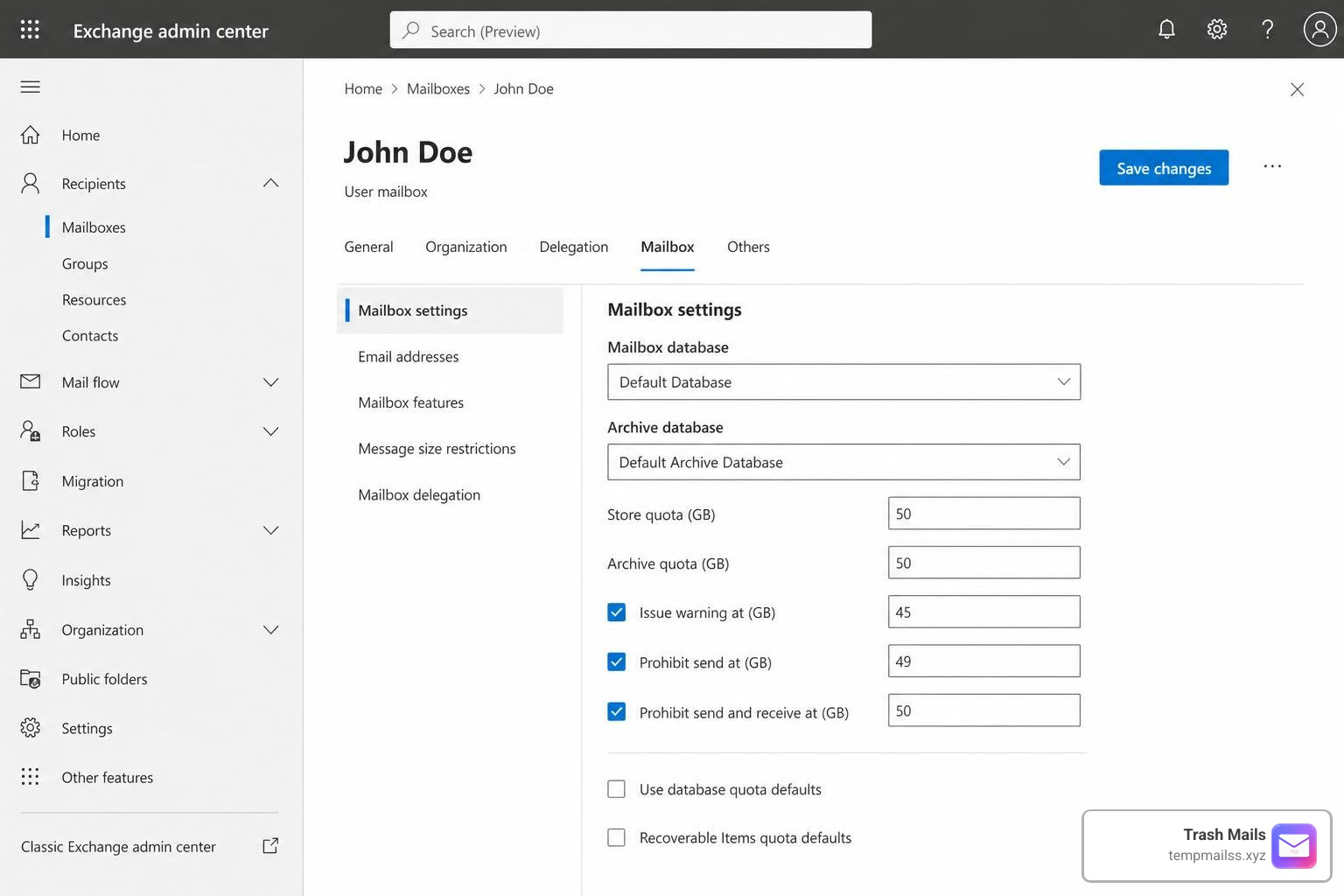
Through the Exchange Admin Center (EAC), we can configure message delivery restrictions on individual mailboxes. This is incredibly useful for sensitive mailboxes (like executive accounts or internal announcement lists) where you only want to accept messages from authenticated internal users or specific distribution lists.
To set this up, go to Recipients > Mailboxes in the EAC, select the mailbox, navigate to Mailbox settings > Message delivery restriction, and manage your accept/block lists. For more details on this administrative feature, see Configure message delivery restrictions.
Managing Mailbox Junk Email Settings via PowerShell
Administrators can also manage a user's personal Blocked Senders and Safe Senders lists on their behalf. This is done using Exchange Online PowerShell and the Set-MailboxJunkEmailConfiguration cmdlet.
For example, if you want to add a spammer to a specific user's blocklist, you can run:
Set-MailboxJunkEmailConfiguration -Identity "user@yourcompany.com" -BlockedSendersAndDomains @{Add="shopping@spamdomain.com"}
However, we must be aware of the technical limits of the mailbox safelist collection:
- The 510 KB Limit: The entire safelist collection (Blocked Senders, Safe Senders, and Safe Recipients combined) cannot exceed 510 KB in size. If a user exceeds this limit, Outlook will stop syncing the lists.
- Synchronization Limits: The Blocked Senders list supports up to 65,535 total entries, while the Safe Senders list is limited to 1,024.
- Entra ID Sync: To keep performance optimal, only the first 500 blocked sender entries in a mailbox have their hashes synchronized to Microsoft Entra ID.
For a deep dive into how to manage these configurations and prevent conflicts, refer to Configure junk email settings on mailboxes.
Troubleshooting When an Exchange Online Block Sender Rule Fails
Have you ever had a user complain that they clicked "Block" in the New Outlook app, but the emails keep coming? You are not alone.
There is a well-documented issue in the New Outlook for Windows client where the "Block" button intermittently fails, returning a frustrating "Couldn't block sender" error. This is a client-side bug that has persisted across various builds.
If your users run into this, there are two simple workarounds:
- Outlook on the Web: Have the user log into Outlook on the web (OWA). Adding the blocked sender via OWA's junk mail settings bypasses the desktop client bug and writes directly to the mailbox configuration.
- PowerShell Intervention: As an admin, you can step in and run the Set-MailboxJunkEmailConfiguration cmdlet to manually add the block, as explained above.
To join the community discussion and see if Microsoft has released a permanent patch for your specific client build, visit the New Outlook cannot block sender thread.
Best Practices for Maintaining Exchange Online Blocklists
Managing blocklists is an ongoing task. If we are not careful, we can easily fall into the trap of "over-blocking," where aggressive rules start stopping legitimate business communications.
To keep your mail flow healthy and secure, we recommend following these industry best practices:
- Always Submit to Microsoft: Do not just block a sender and walk away. Use the Submissions portal in Microsoft Defender to submit the spam or phishing message to Microsoft. This helps train the machine learning filters, which benefits everyone globally.
- Set Expiration Dates: When adding entries to TABL, avoid choosing "Never expire" unless it is an absolutely verified, permanent threat. Instead, use a 30-day or 45-day window. Spammers usually abandon their domains within a few weeks anyway.
- Keep IP Blocks to a Minimum: Regularly review your connection filter policy and remove old IP blocks. Since IPs change hands constantly, a block you put in place six months ago might be blocking a legitimate sender today.
- Disable Internal Sender Filtering: Ensure that your sender filtering agents do not apply to internal, authenticated connections. This prevents internal compromise alerts from breaking your entire internal mail flow.
For a complete breakdown of how to structure your anti-spam and sender filtering agents, you can read the official Sender filtering procedures.
Frequently Asked Questions about Exchange Online Blocking
How quickly do block entries take effect in Exchange Online?
When you add a block entry to the Tenant Allow/Block List (TABL), it is propagated across the Microsoft 365 cloud infrastructure almost immediately. It typically becomes active within 5 minutes.
For other methods, such as anti-spam policies or mailbox-level junk email settings, propagation can take anywhere from 30 minutes to 1 hour, and in rare cases, up to 24 hours for full worldwide replication.
What is the difference between 5321.MailFrom and 5322.From addresses?
Every email has two different sender addresses:
- The 5321.MailFrom (Envelope Sender): This is the actual address used by the sending mail server to establish the SMTP connection. It is where bounce messages (NDRs) are sent.
- The 5322.From (Header From): This is the friendly address displayed to the user in their email client (e.g., Outlook).
This distinction is critical because some blocking methods (like anti-spam policy blocklists) only inspect the 5322.From address. If a spammer uses a fake 5322.From address but a real 5321.MailFrom address, the block might fail unless you use TABL or a mail flow rule that inspects both.
Can blocked senders still send emails to internal recipients?
It depends on how they are blocked. If a mailbox is blocked globally via TABL, both inbound and outbound communication is completely severed.
However, if an internal user's mailbox has been restricted by Microsoft due to outbound spamming (a "restricted user"), they can typically still send emails to internal colleagues, but all outbound mail to external recipients will be blocked.
Conclusion
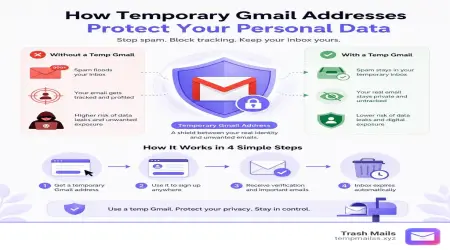
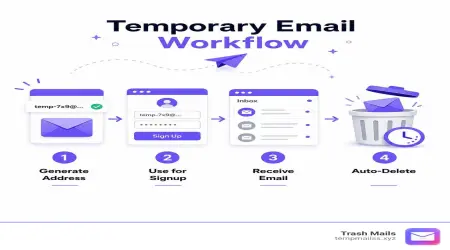
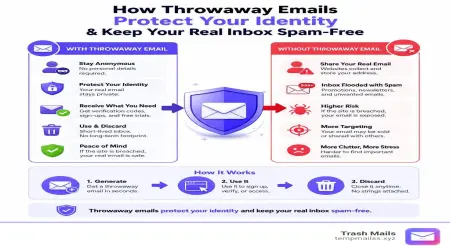
Managing blocklists in Exchange Online can feel like a game of whack-a-mole. Spammers buy new domains, cycle through IP addresses, and constantly change their tactics. While mastering TABL, anti-spam policies, and transport rules is essential for protecting your corporate environment, the best way to stop spam is to prevent your real email address from getting into the wrong hands in the first place.
This is exactly why we built Trash Mails.
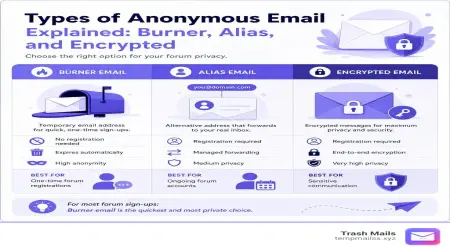
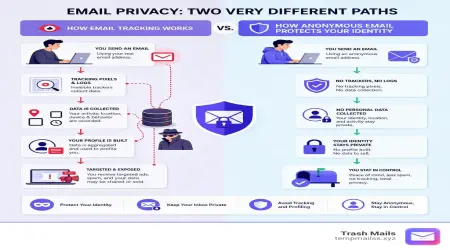
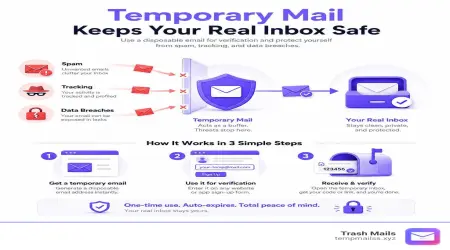
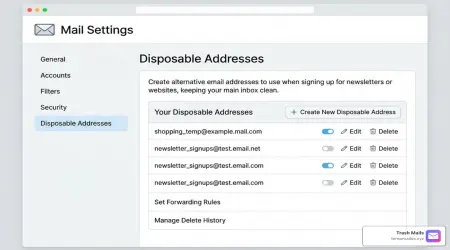
Instead of giving your real corporate or personal email address to untrusted websites, online trials, or public Wi-Fi portals, you can use our free, instant, and unlimited temporary email service. By routing risky sign-ups through disposable addresses, you keep your Exchange Online inbox clean, secure, and completely free of spam.
Ready to take control of your inbox? Protect your privacy with Trash Mails today!